I have recently had to help a colleague with an issue on her computer: her USB ports were throwing an error about a power surge. The manufacturer’s official documentation recommended going through a list of steps, which included opening the hardware troubleshooter. A look at the Settings app revealed that it was removed from the menu in Windows 11 and is therefore inaccessible.
The manufacturer recommended to use the “Get Help” app to open it, but that didn’t work (and it sent me on a whole new side quest, as the app did not work at all).
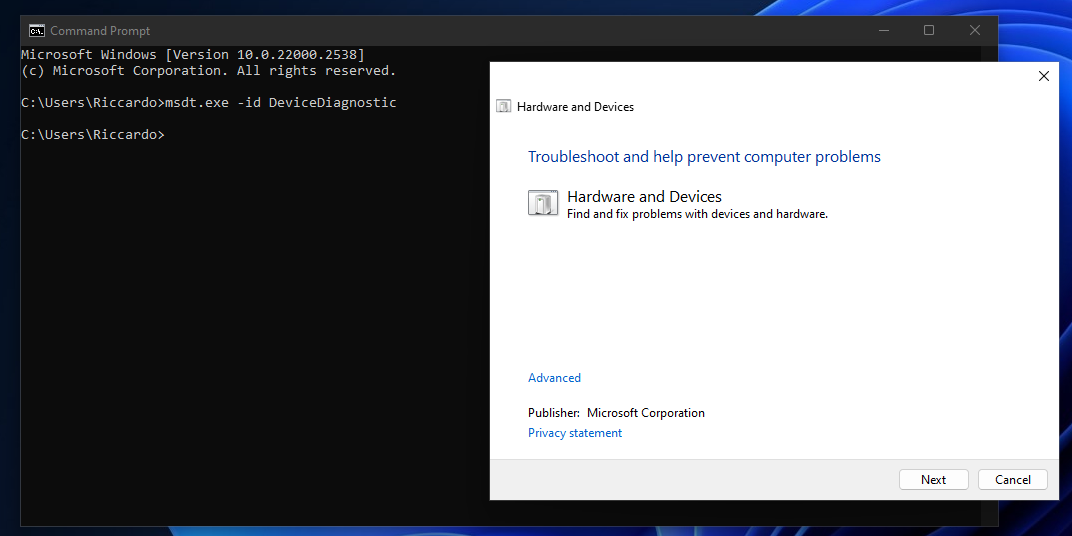
How can you open the hardware troubleshooter on Windows 11, then? The answer is that you need to do so through the command line. Here is what you need to do, step by step:
open the Start menu or the search menu
type “cmd”
select the command prompt app
type “msdt.exe -id DeviceDiagnostic” and press enter
This will open the hardware diagnostic dialogue. While this did not help me in the end, it might still be worth trying for you!
Proxmox is getting a lot of publicity and a massive influx in new users thanks to Broadcom’s ruthless policies after the VMware acquisition. However, there are some quirks to be aware of, especially if you want to run Windows Server and GUI applications. If you see errors in your GUI applications which used to work under VMware, the reason might be that you need to make a few simple changes in your configuration.
Case in point: a client recently transitioned from VMware to Proxmox. Their infrastructure is simple and only has a single server which manages everything, mostly through Windows Server 2019 VMs. The transition appeared to go smoothly, until an application which is used to sync the ERP and the CRM started misbehaving: it threw errors which led to thousands of emails being sent every day. Also, the application would not work correctly: the tray icon didn’t work, and so it was impossible to actually access the GUI and figure out what the problem was.
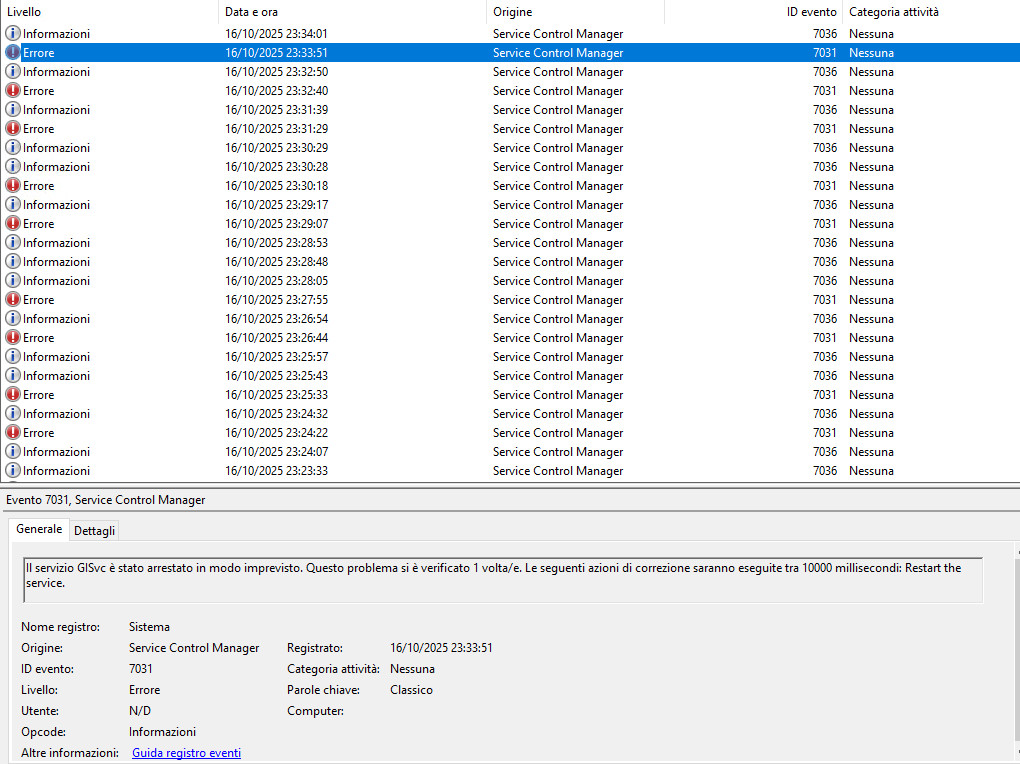
The issue was compounded by a misleading error message: when launching the application, it simply said that it was already open, and then closed down. Looking at system logs, however, there were instances of errors related to the system not having the correct drivers for the GPU. As you can read in the screenshot above (although it is in Italian), the GISvc service crashed. This is the service that manages the graphics under Windows, and in turn it means that the graphics driver was not working properly.
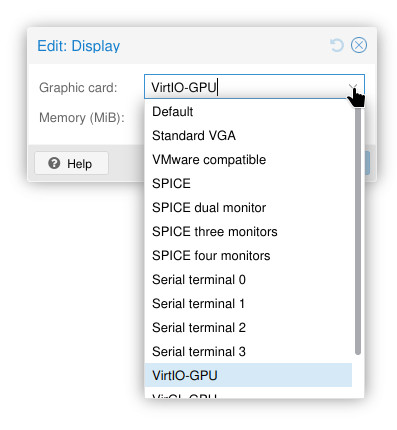
This was, indeed, the issue all along: the VM was configured using Proxmox’s default GPU, rather than the VirtIO model. There are no drivers for the default GPU under Windows, which means that graphical applications will sometimes throw errors and not work correctly.
The solution is therefore easy:
in Proxmox’s Web GUI, under hardware, select the q35 machine type
select the VirtIO display device
if the machine is running, turn it off completely (don’t just reboot it!)
As if by a miracle, the client’s application started working again without a hitch, and there were no more error emails being sent by the thousands.
This simple configuration change will fix the vast majority of issues related to misbehaving GUI applications in Windows (Server) under Proxmox. It only takes a few minutes, but it can take hours to diagnose because applications sometimes throw misleading errors! If you have had similar issues as well, this might just do the trick.
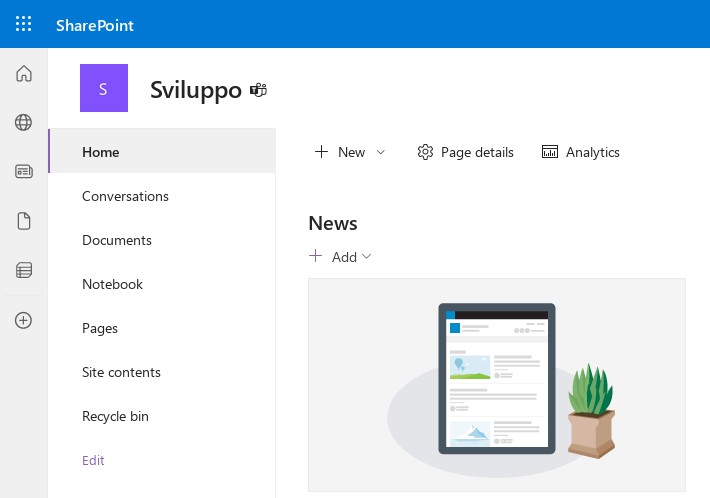
I found myself in the situation of having a SharePoint Online library’s URL containing a space. While this may not seem important, it prevented me from configuring the client on a colleague’s PC running Linux. Microsoft does not allow you to change this via their web UI, and you have to use PowerShell to change this. While it is relatively easy to do, it’s not very well documented (in the sense that either you know the possibility is there, or it’s hard to figure out, especially if you’re a Linux guy like me).
The procedure requires you to install PnP PowerShell, which can be done on all three major operating systems (Windows, macOS, and Linux as well!). Instructions on how to install PowerShell are available on Microsoft’s website. You then have to install PnP PowerShell. Once you have done so, it is relatively straightforward to make the change:
# Set Parameters
$SiteURL = "https://domain.sharepoint.com/sites/yoursite/"
$ListName = "OldList"
$NewListURL = "NewList"

# Connect to PnP Online: this will ask for your username and password
Connect-PnPOnline -Url $SiteURL

# Get the List
$List = Get-PnPList -Identity $ListName -Includes RootFolder

# Change the URL
$List.Rootfolder.MoveTo($NewListURL)
Invoke-PnPQuery
It will take a few moments after you run the last command, but if no errors appear your SharePoint Online library URL will be changed to the new one you want.
Manage Consent
To provide the best experiences, we use technologies like cookies to store and/or access device information. Consenting to these technologies will allow us to process data such as browsing behavior or unique IDs on this site. Not consenting or withdrawing consent, may adversely affect certain features and functions.
Functional
Always active
The technical storage or access is strictly necessary for the legitimate purpose of enabling the use of a specific service explicitly requested by the subscriber or user, or for the sole purpose of carrying out the transmission of a communication over an electronic communications network.
Preferences
The technical storage or access is necessary for the legitimate purpose of storing preferences that are not requested by the subscriber or user.
Statistics
The technical storage or access that is used exclusively for statistical purposes.The technical storage or access that is used exclusively for anonymous statistical purposes. Without a subpoena, voluntary compliance on the part of your Internet Service Provider, or additional records from a third party, information stored or retrieved for this purpose alone cannot usually be used to identify you.
Marketing
The technical storage or access is required to create user profiles to send advertising, or to track the user on a website or across several websites for similar marketing purposes.