Proxmox is getting a lot of publicity and a massive influx in new users thanks to Broadcom’s ruthless policies after the VMware acquisition. However, there are some quirks to be aware of, especially if you want to run Windows Server and GUI applications. If you see errors in your GUI applications which used to work under VMware, the reason might be that you need to make a few simple changes in your configuration.
Case in point: a client recently transitioned from VMware to Proxmox. Their infrastructure is simple and only has a single server which manages everything, mostly through Windows Server 2019 VMs. The transition appeared to go smoothly, until an application which is used to sync the ERP and the CRM started misbehaving: it threw errors which led to thousands of emails being sent every day. Also, the application would not work correctly: the tray icon didn’t work, and so it was impossible to actually access the GUI and figure out what the problem was.
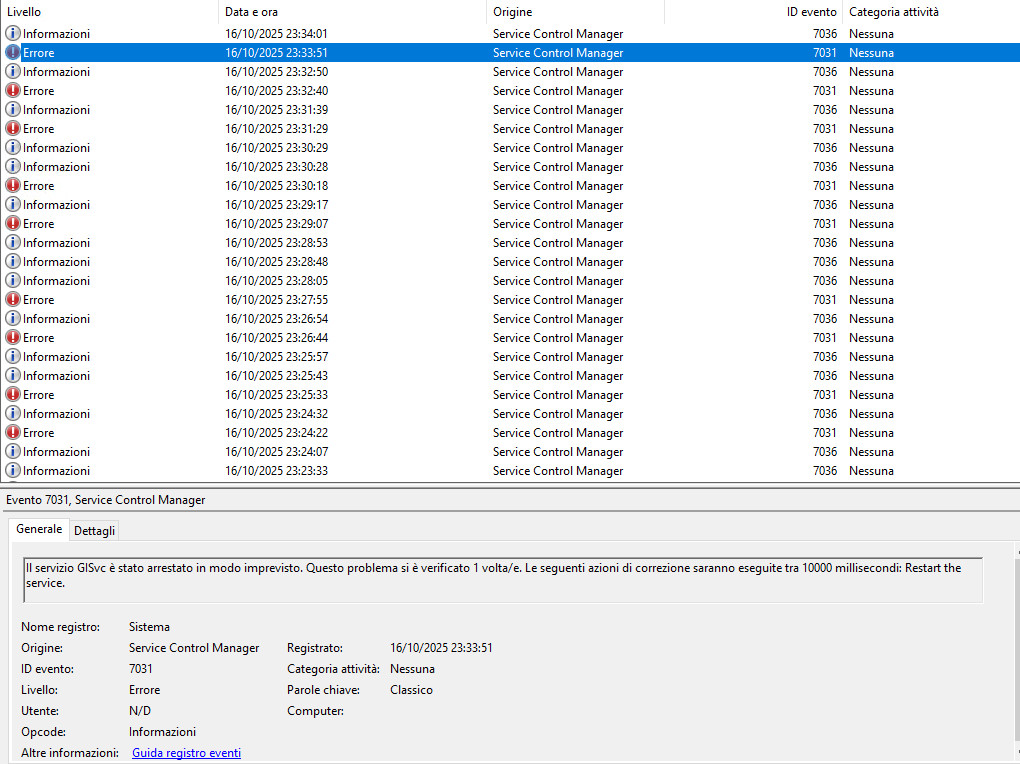
The issue was compounded by a misleading error message: when launching the application, it simply said that it was already open, and then closed down. Looking at system logs, however, there were instances of errors related to the system not having the correct drivers for the GPU. As you can read in the screenshot above (although it is in Italian), the GISvc service crashed. This is the service that manages the graphics under Windows, and in turn it means that the graphics driver was not working properly.
This was, indeed, the issue all along: the VM was configured using Proxmox’s default GPU, rather than the VirtIO model. There are no drivers for the default GPU under Windows, which means that graphical applications will sometimes throw errors and not work correctly.
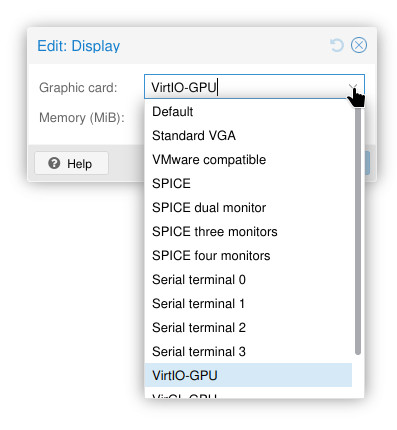
The solution is therefore easy:
- in Proxmox’s Web GUI, under hardware, select the q35 machine type
- select the VirtIO display device
- if the machine is running, turn it off completely (don’t just reboot it!)
- start it again
- once logged in, download and install the latest VirtIO drivers
- reboot the machine
As if by a miracle, the client’s application started working again without a hitch, and there were no more error emails being sent by the thousands.
This simple configuration change will fix the vast majority of issues related to misbehaving GUI applications in Windows (Server) under Proxmox. It only takes a few minutes, but it can take hours to diagnose because applications sometimes throw misleading errors! If you have had similar issues as well, this might just do the trick.