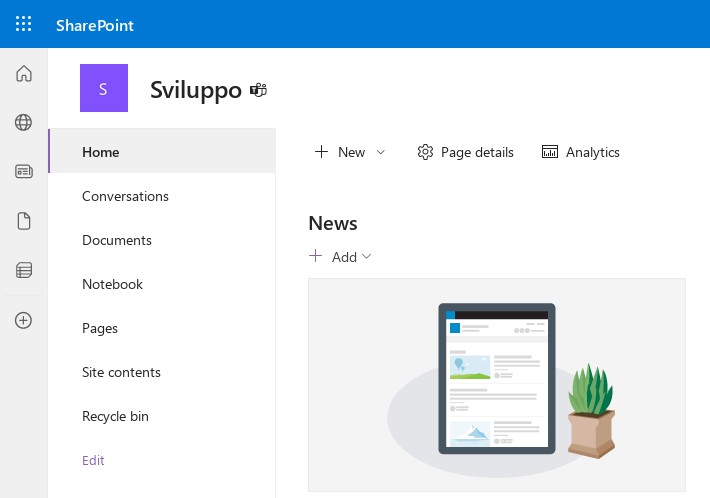
I found myself in the situation of having a SharePoint Online library’s URL containing a space. While this may not seem important, it prevented me from configuring the client on a colleague’s PC running Linux. Microsoft does not allow you to change this via their web UI, and you have to use PowerShell to change this. While it is relatively easy to do, it’s not very well documented (in the sense that either you know the possibility is there, or it’s hard to figure out, especially if you’re a Linux guy like me).
The procedure requires you to install PnP PowerShell, which can be done on all three major operating systems (Windows, macOS, and Linux as well!). Instructions on how to install PowerShell are available on Microsoft’s website. You then have to install PnP PowerShell. Once you have done so, it is relatively straightforward to make the change:
# Set Parameters
$SiteURL = "https://domain.sharepoint.com/sites/yoursite/"
$ListName = "OldList"
$NewListURL = "NewList"

# Connect to PnP Online: this will ask for your username and password
Connect-PnPOnline -Url $SiteURL

# Get the List
$List = Get-PnPList -Identity $ListName -Includes RootFolder

# Change the URL
$List.Rootfolder.MoveTo($NewListURL)
Invoke-PnPQuery
It will take a few moments after you run the last command, but if no errors appear your SharePoint Online library URL will be changed to the new one you want.